The Art of Reading Files in the AI Age
Reading a file is probably the most fundamental skill when it comes to editing text files. Before you can insert, search, edit, or otherwise manipulate a file, you need to be able to read it.
In the age of AI, you might be thinking: “why do I need to worry about reading files?” You can just open in them in your editor, IDE, or browser—or ask AI questions about the contents.
But the thing is, reading files is a ubiquitous habit of anyone writing software. If you counted the number of times you open a file in a day/week/year, I suspect it would be very often!
Whilst there are a plethora of ways to open files, understanding how to do so in some foundational tools introduces you to the bedrock of the text editing experience.
In this post, I’m going to cover how to read files in Vim, Emacs, and the Linux command line. Since this is also the first post in a series about text editing with these tools, I’m also going to cover how to find interactive help for these tools as well.
Reading a file
Vim
Reading a file in Vim is simply a case of starting the program from a terminal, and providing the file path as an argument. In order to avoid using custom configurations of Vim, all the Vim commands in these posts will use the --clean argument which ensures it starts with defaults only.
To read a file in Vim, run:
vim --clean <file-path>
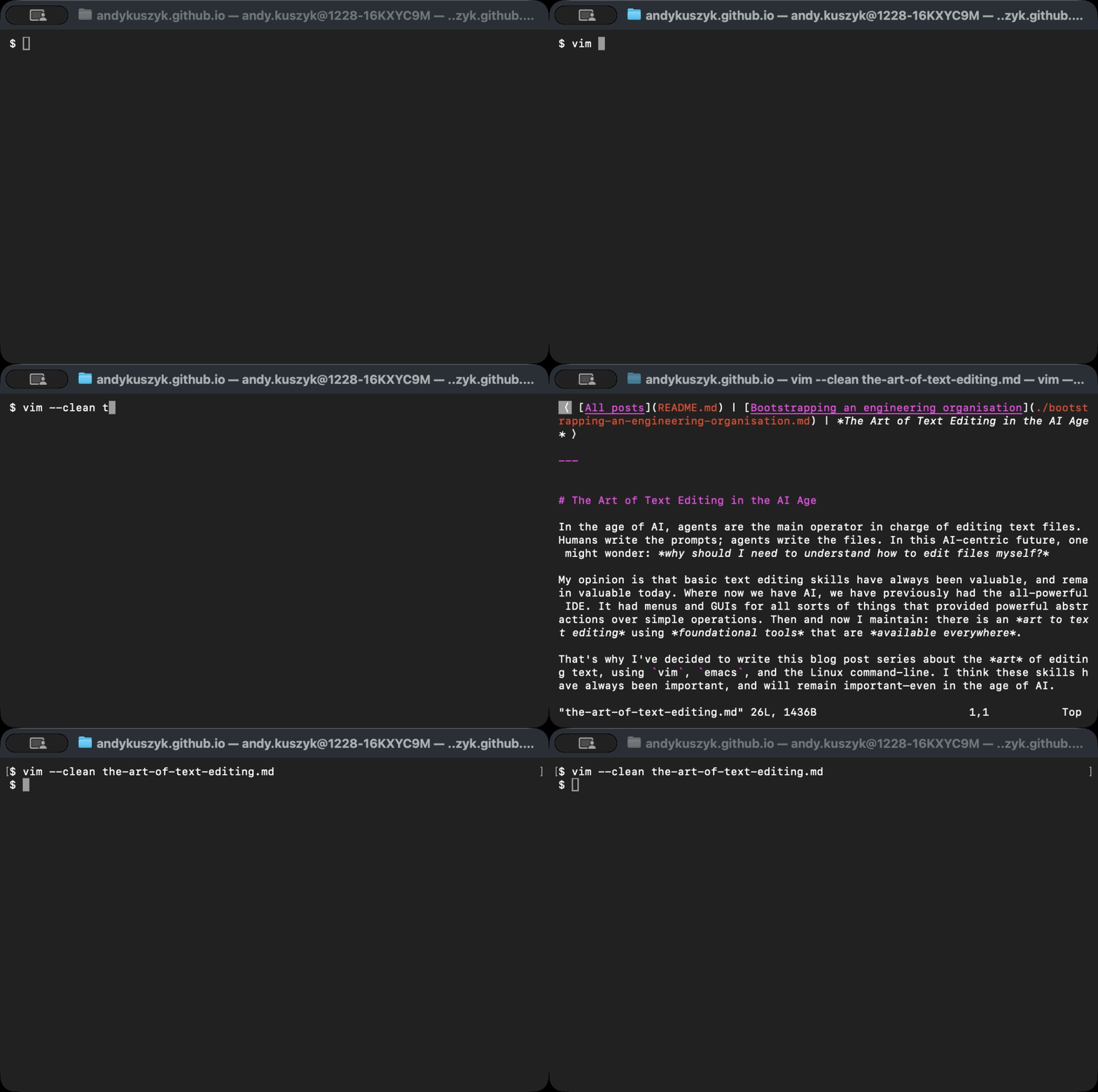
Now you’ve opened the file, you probably want to navigate it, search it, and edit it. But all those things will be covered in future posts! For now, the most important thing to know is how to exit Vim. You do this by opening the Vim command line with :, and entering q:
:q
Emacs
Reading a file in Emacs is very similar in principle to Vim. You can simply start it in a terminal, providing the file path as an argument. In these examples I’m going to use the -nw flag to launch Emacs in a terminal, and the -Q flag to avoid loading any user-specific config:
emacs -nw -Q <file-path>
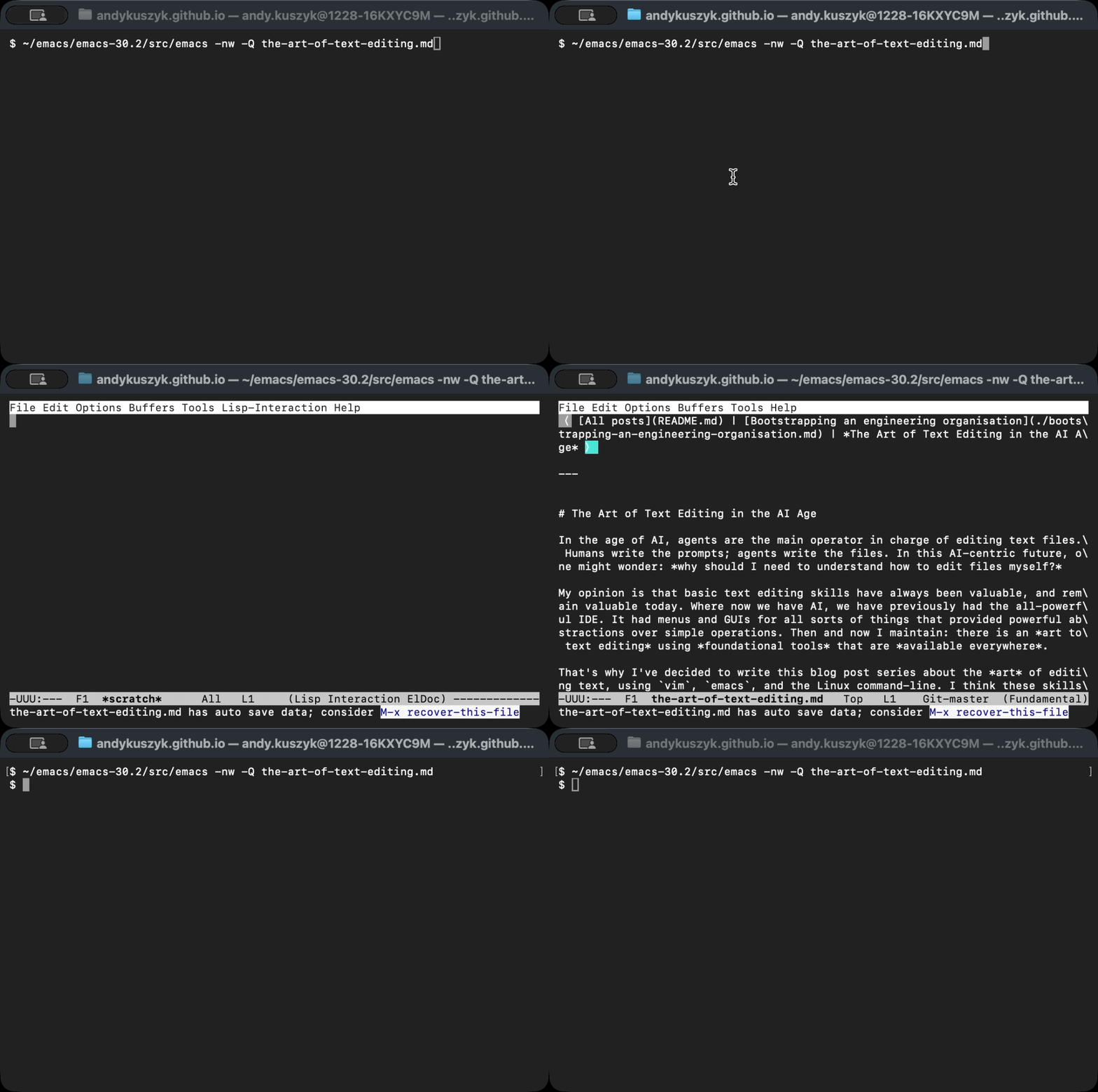
Once you’re in Emacs, you can quit with the following key binding:
C-x C-c
In Emacs parlance, the prefix C- stands for the control key. So this key binding is Control-x followed by Control-c.
Linux command-line
Reading a file on the Linux command-line is just as easy as in Vim and Emacs, but with a few more options. One can use cat to read the whole file, head to read the start of the file, or less to page through the file:
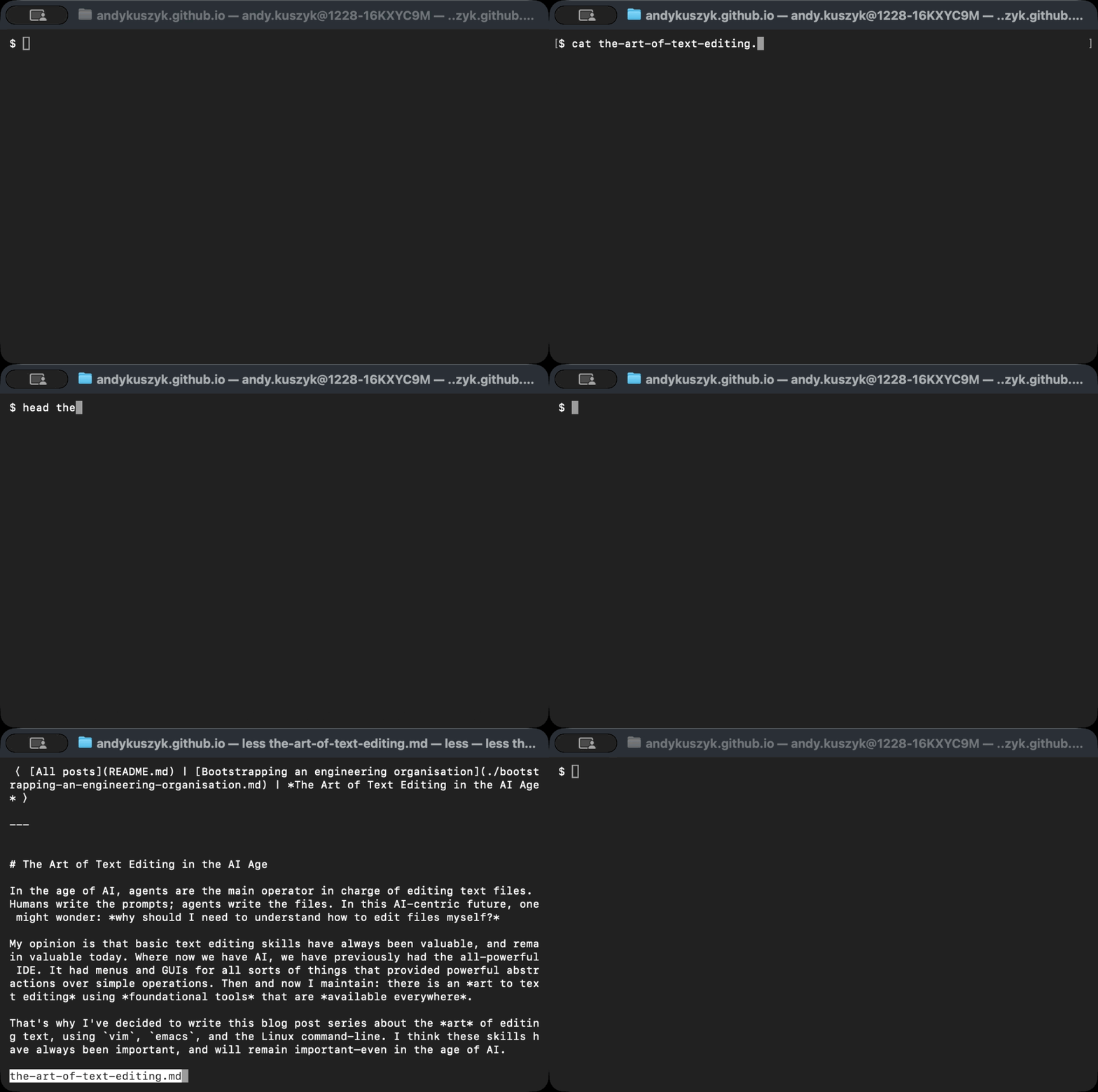
There will be more on using head and less to navigate files in future posts. One thing to note on less is that exiting the pager requires a special command: q in this case.
Getting Help
Vim
Help can be found in Vim using the command-line. Introductory help can be found from :help, and specific help can be found by searching for a keyword, e.g. :help scrolling.
Entering : activates the Vim command-line, help is a command, and scrolling is an argument:
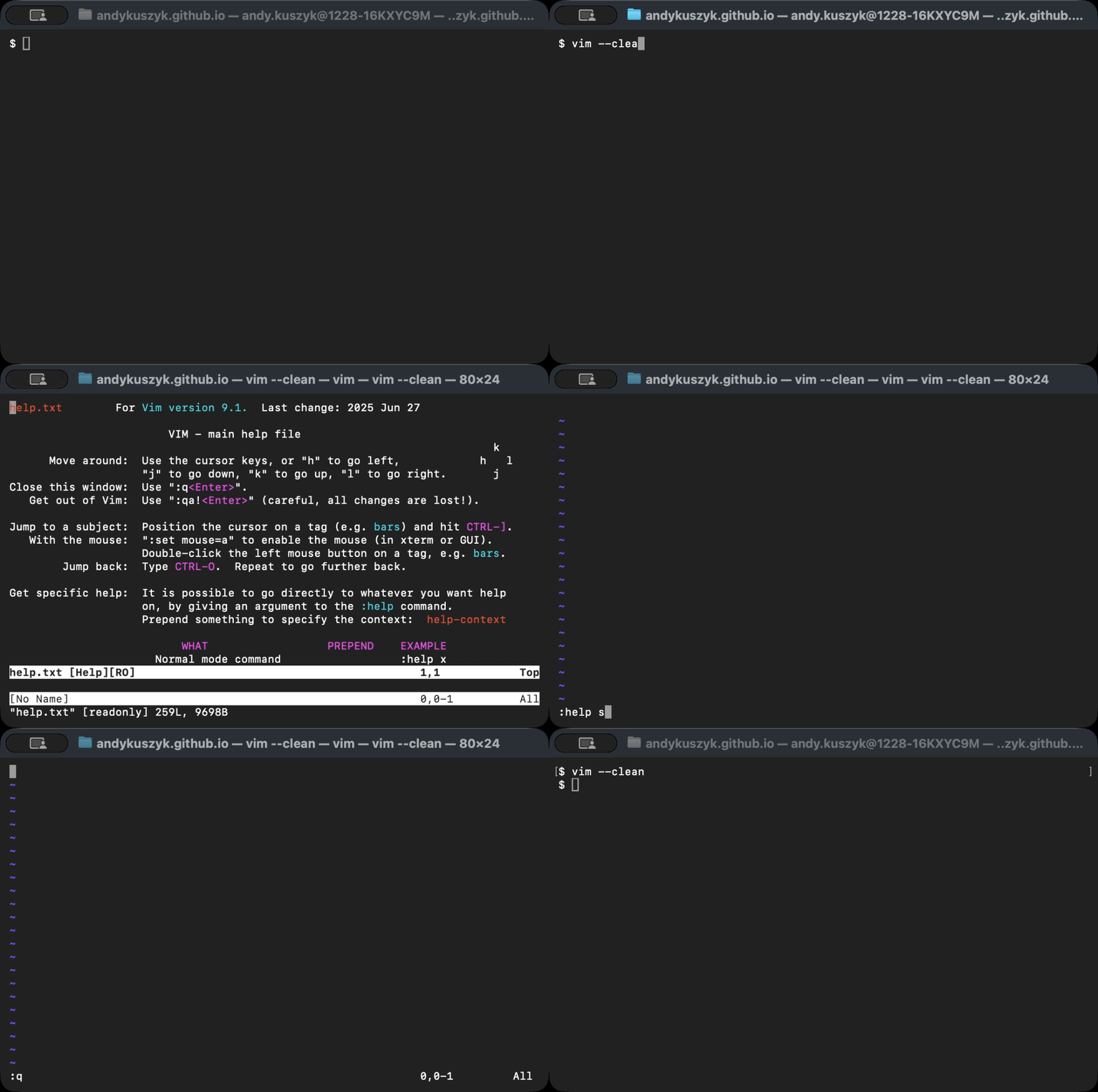
As with a file, :q can be used to close a help screen. In Vim parlance, this quits the current window. More information in Vim windows can be found by running :help windows.
Emacs
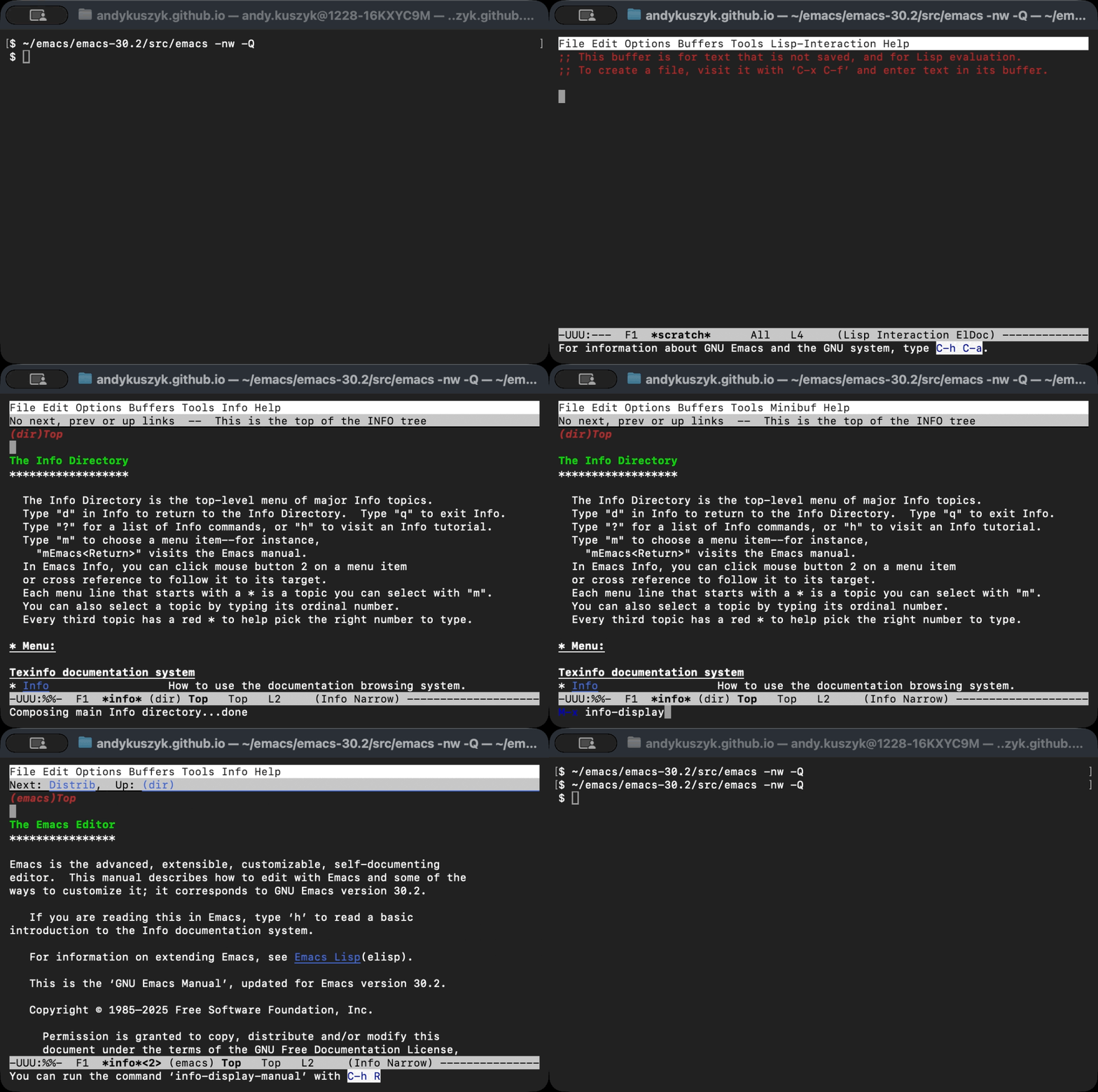
Emacs as its own, similar help system called info. This is actually part of a wider general-purpose manual system similar to Manpages.
The info system can be launched in Emacs with:
M-x info
This keybinding is also specific to Emacs parlance. M- stands for the meta or alt key, so M-x means Alt-x on modern keyboards.
More usefully, you can read a specific manual with M-x info-display-manual:
Linux command-line
As for the Linux command-line, help is abundant via Manpages. In order to view the “Man” manual for a command, just run man. E.g. man cat:
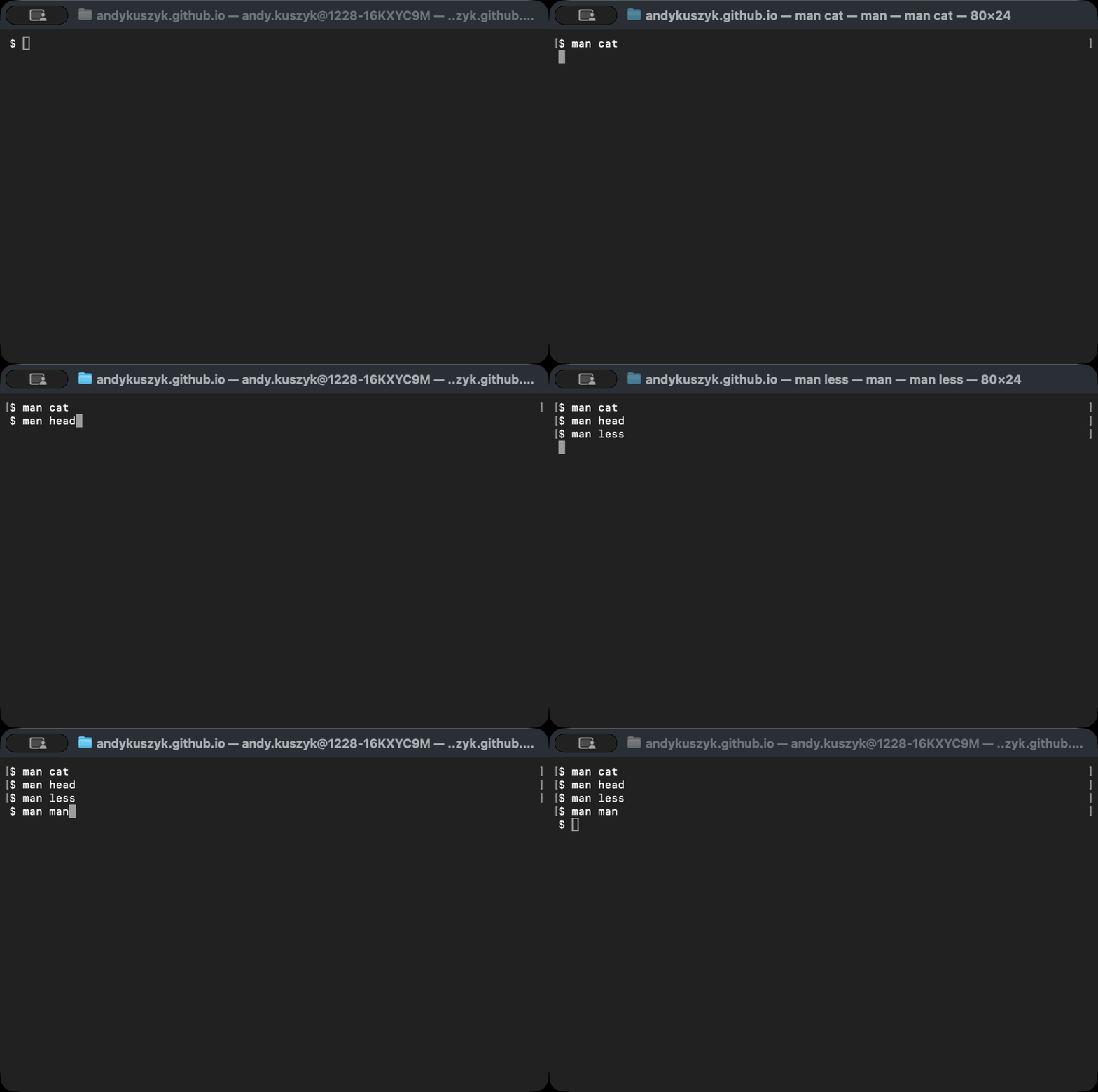
Running man just let’s you read the file containing the manual, which generally uses less as a pager. As a result, any tips you pick up for reading files with less will also work for man.
The art of…reading files!
So there are three simple ways to read files: in Vim; in Emacs; on the Linux command-line.
This post has introduced the fundamentals of using these tools, and future posts will build on this foundation to cover searching files, editing files, and more. Happy editing!